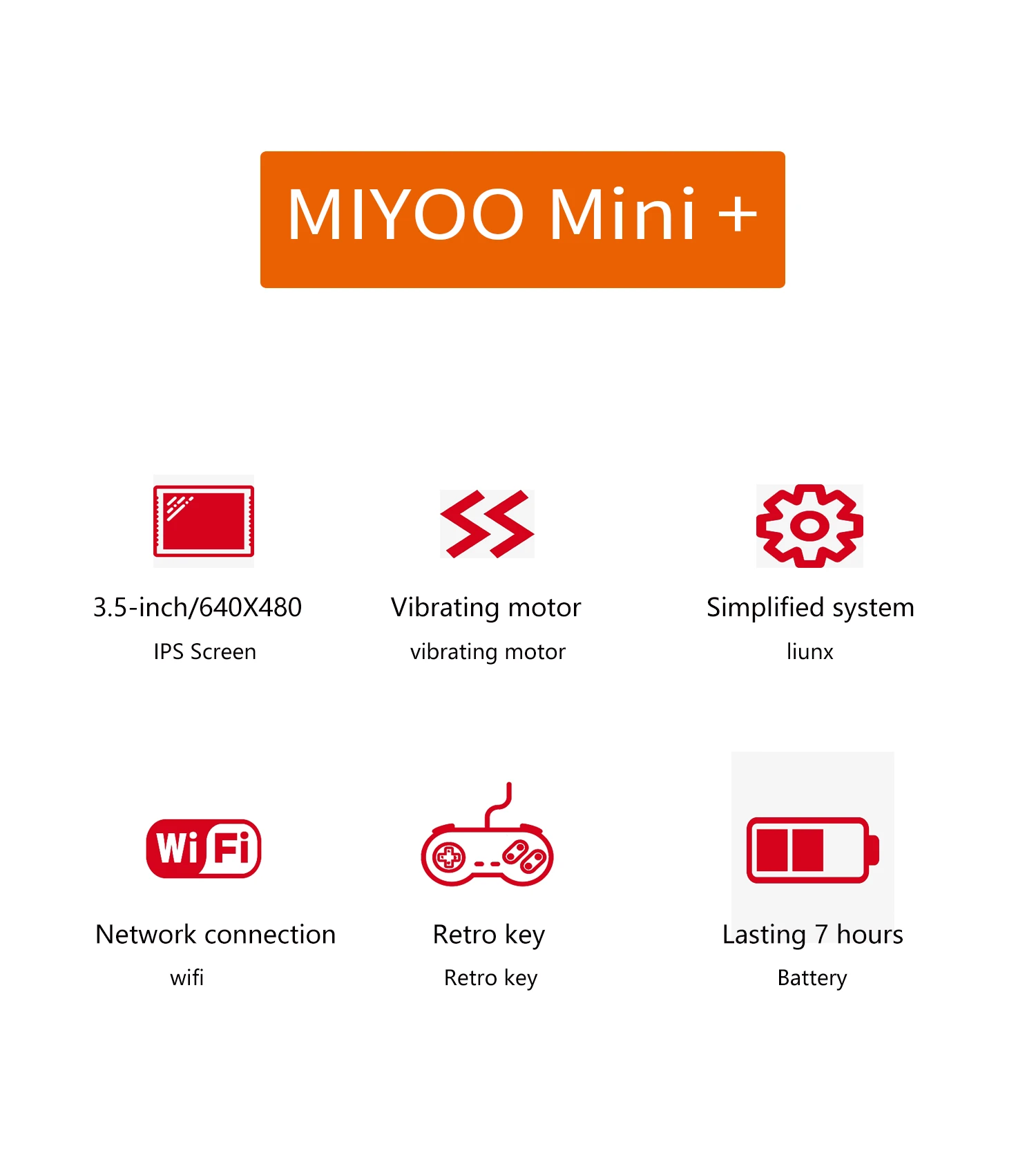
The Miyoo Mini Plus is a tiny beast. It’s got that perfect Game Boy form factor, a screen that punches way above its weight class, and enough processing power to handle basically everything from the 8-bit era up through the PS1. But honestly? If you’re just loading up a ROM and hitting "play," you’re doing it wrong. Especially when it comes to arcade games.
Arcade games weren't meant to be seen on a raw, 4:3 LCD panel with crisp, square pixels. They were designed for curvy, glowing CRT monitors with scanlines and specific phosphor patterns. When you dump an arcade core onto a modern handheld without any "makeup," it looks sterile. It looks flat. Worst of all, because of the Miyoo’s screen resolution, you often get weird scaling artifacts that make text look like a jumbled mess.
This is where arcade overlays for Miyoo Mini Plus come into play. They aren't just pretty borders. They are the bridge between a digital file and the "soul" of the original cabinet.
The Problem With "Raw" Arcade Emulation
Most people get their Miyoo, install OnionOS (which you should absolutely do immediately), and jump straight into Metal Slug or Pac-Man. Then they notice it. The screen looks... off. Because arcade cabinets used all sorts of weird aspect ratios and resolutions, fitting them onto a 640x480 screen requires some mathematical gymnastics.
If you use "Integer Scaling," the game stays sharp but becomes tiny, surrounded by a massive black void. If you "Fit to Screen," the pixels stretch and shimmer every time the screen scrolls. It’s annoying.
Overlays fix this by filling that dead space with high-quality artwork—often scans of the original cabinet bezels. More importantly, many of these overlay packs include "shaders" or "filters" that simulate the look of a real tube TV. You get those beautiful horizontal scanlines that make the art look exactly how the developers intended. It masks the imperfections of the scaling and makes the whole experience feel premium. It’s the difference between eating a steak off a paper plate or a heated ceramic one.
Finding the Best Arcade Overlays for Miyoo Mini Plus
You shouldn't just grab any random image from Google Images. The Miyoo Mini Plus has a very specific screen resolution. If the overlay isn't designed for 640x480, it’ll look blurry or, worse, it’ll cut off part of the actual game.
Honestly, the community is where the gold is. You’ve probably heard of the "OnionOS" team, but the real heroes for aesthetics are creators like Crt-Pies or the folks over at the RetroArch overlay repos. One of the most popular sets for the Miyoo is the "Perfect CRT" collection. It’s specifically tuned to the Miyoo’s pixel density.
When you install these, you aren't just getting a border. You're getting a curated experience. Some overlays even mimic the reflection of the arcade lights on the "glass" of the screen. It’s subtle. You might not notice it consciously, but your brain goes, "Yeah, this feels like 1994."
The "Overlays vs. Bezels" Confusion
People use these terms interchangeably, but they're slightly different. A bezel is the physical frame around an arcade monitor. An overlay is the digital file that contains the bezel and any scanline effects. On the Miyoo Mini Plus, you’re usually looking for .cfg and .png files that live in your RetroArch/.retroarch/overlay folder.
If you’re using the MAME or FinalBurn Neo cores, setting these up can be a bit of a headache because every game is a different size. Galaga is vertical. Street Fighter II is horizontal. You need a pack that understands these differences automatically.
How to Actually Set This Up Without Losing Your Mind
Installing arcade overlays for Miyoo Mini Plus isn't as scary as it sounds, but it does require a bit of tinkering with the RetroArch menu. Don’t worry; you won’t break anything.
First, get your files. Most people download a "Mega Pack" from a site like Reddit or GitHub. Once you have them on your SD card, you need to navigate to the RetroArch Quick Menu while a game is running.
- Press the Menu button + Select.
- Go to "Onscreen Overlay."
- Make sure "Display Overlay" is toggled to ON.
- Select "Overlay Preset" and find the
.cfgfile for the game or system you're playing.
Here is the pro tip: once it looks good, go to "Overrides" in the Quick Menu and select "Save Content Directory Overrides." This tells the Miyoo, "Hey, every time I open an arcade game, use this specific look." If you don't do this, you'll have to set it up every single time you play, which is a one-way ticket to frustration-ville.
Why Some People Hate Overlays (And Why They're Wrong)
There’s a segment of the retro gaming community that wants "clean" pixels. They want every square to be perfectly sharp. They think overlays are a distraction.
I get it. But arcade games were literally drawn with the CRT’s blur in mind. Artists used a technique called "dithering"—placing two different colored pixels next to each other so that on a CRT, they would bleed together to create a third color. On a raw Miyoo screen, dithering looks like a checkerboard. It looks broken.
With a good overlay and a light scanline filter, that checkerboard turns into a smooth gradient. You’re actually seeing more detail, not less, because you’re seeing the intended image.
Also, let's talk about the "Black Bar" problem. The Miyoo screen is a 4:3 ratio. Many arcade games, especially "shmups" like DonPachi, are vertical (3:4). Without an overlay, you have massive black bars on the left and right. It makes the handheld feel cheap. A well-designed overlay fills that space with instruction cards or cabinet art, making the device feel like a dedicated miniature arcade machine.
Performance Hits: A Real Concern?
The Miyoo Mini Plus is surprisingly capable, but it isn't a powerhouse. Some people worry that running high-resolution overlays and complex shaders will tank the frame rate.
Good news: basic overlays are just static images. They use almost zero CPU power.
The "filters" that often come with them (like scanlines) can sometimes cause a tiny bit of lag if they’re too complex. If you notice Metal Slug is chugging more than usual, check your video filters. Stick to "Simple Scanlines" or "Grid" filters. These give you the look without the processing overhead. Most of the curated packs for the Miyoo Mini Plus are already optimized for this, so you shouldn't run into issues unless you're trying to run heavy 3D shaders meant for a PC.
Where to Find the "God Tier" Packs
If you want the best of the best, look for the "Bezel Project." While it’s huge and might need some slimming down for a small SD card, it has art for almost every arcade game ever made.
Another fantastic resource is the "OnionOS Official Wiki." They have a section dedicated to display thinners and overlays that are pre-configured for the device's hardware.
If you’re feeling lazy (no judgment), look for the "Done Set" or "Tiny Best Set" add-ons. These often come with "curated overlays" folders that are literally drag-and-drop. It saves you hours of manual configuration.
Actionable Next Steps for Your Miyoo
Ready to level up? Here is exactly what you should do right now to get your arcade games looking right:
- Check your OnionOS version. Make sure you're on the latest stable build (usually 4.2 or 4.3). This ensures the RetroArch shortcuts work correctly.
- Download a Miyoo-specific overlay pack. Search for "Crt-Pies Miyoo Overlays" or "Perfect CRT for Miyoo Mini Plus." These are lightweight and won't kill your battery.
- Move the files correctly. Put the
.pngand.cfgfiles into theROOT:/RetroArch/.retroarch/overlay/folder on your SD card. - Enable Integer Scaling. In the RetroArch Video settings, turn on "Integer Scale." This ensures the game pixels are perfectly square, and the overlay will fill the remaining space.
- Apply the Overlay. Use the Menu+Select shortcut in-game, find your preset, and save the "Core Override" so it sticks.
- Experiment with Opacity. If the overlay feels too "busy," you can turn down the opacity in the RetroArch settings to make it fade into the background slightly.
Stop playing your arcade games in a black box. The Miyoo Mini Plus has a gorgeous screen—give it the frame it deserves. Once you see Street Fighter II with proper scanlines and a Capcom-branded bezel, you’ll never go back to the raw, naked pixels again.