Mobile gaming is weird. You’ve got these incredibly powerful smartphones—literally pocket-sized supercomputers—running games like Genshin Impact, Call of Duty: Mobile, and PUBG. But then you’re stuck rubbing your thumbs against a piece of glass. It’s imprecise. It’s sweaty. Honestly, it’s just frustrating when you know a physical joystick would give you the win. That is exactly where the Panda Gamepad Pro APK enters the conversation.
Most people think you can just pair a Bluetooth controller and start playing. Sometimes that’s true. But for the biggest competitive games on the Play Store, developers often block controller support to keep the playing field "level," or they just haven't bothered to code it in. This app is the workaround. It’s a sophisticated keymapper that overlays physical button presses onto on-screen touch points. It sounds simple, but the execution is where things get complicated—and where most users get stuck.
What is Panda Gamepad Pro APK actually doing?
Think of this app as a transparent layer sitting on top of your game. When you move the left stick on your Xbox or PlayStation controller, the app tells the phone, "Hey, someone just swiped on this specific part of the screen." It’s a bridge. Unlike generic keymappers that often get you banned because they create a "cloned" version of the game, this one usually injects the mapping directly into the original game environment.
It is a "Pro" version for a reason. There’s a free version called Panda Keymapper, but it’s basically a ghost town of bugs now. The Pro version supports almost any peripheral you can throw at it. We’re talking DualShock 4, DualSense, Xbox One/Series X controllers, and even those specialized mobile pads from Razer or Gamesir.
But here is the catch: it’s not "plug and play."
You have to activate it. If you’re not rooted—and let's be real, most people aren't rooting their phones in 2026—you have to connect your phone to a PC or use a second phone to run an activation script via ADB (Android Debug Bridge). It’s a hurdle. A big one. If you restart your phone, the activation often disappears, and you have to do it again. Is it annoying? Yes. Is it worth it for a 3.0 K/D ratio in Warzone Mobile? Most gamers say yeah.
The Activation Headache and How to Fix It
Let’s talk about the "Panda Gamepad Pro Activator." You’ll see this mentioned in every forum from Reddit to XDA Developers. Because Android has strict security permissions, an app isn't allowed to "touch" another app’s screen without high-level clearance. Activation grants that clearance.
- The PC Method: You download a small .zip file from the official Panda website to your Windows or Mac. Enable USB Debugging in your phone's Developer Options. Plug it in, run the
.bator.commandfile, and wait for the "Activation Success" message. - The Wireless Method: If you're on Android 11 or higher, you can actually activate it using the "Wireless Debugging" feature. You use a split-screen trick to enter a pairing code. It’s finicky. You’ll probably fail the first three times.
- The Root Method: If you have Magisk or KernelSU installed, you just grant the app Superuser rights. Done. No PC needed.
People often complain that the Panda Gamepad Pro APK keeps deactivating. This usually happens because of aggressive battery optimization. Android loves to kill background processes to save juice. You have to go into your settings and tell the system "Don't Optimize" for Panda Gamepad Pro. If you don't, the app will die mid-match, and your controller will turn into a paperweight.
Why use this instead of Mantis Gamepad Pro?
It’s the classic rivalry. Mantis is the newer, shinier competitor. It doesn't require a PC for activation as often because it uses a different virtual mouse protocol. However, Panda still wins on raw latency.
In games like Brawl Stars or Mobile Legends, even a 20ms delay between your thumb moving and the character reacting feels like walking through mud. Panda’s mapping engine is incredibly lean. It doesn't have a flashy UI, but the "touch-to-response" time is nearly instantaneous.
Also, Panda handles "POV" or "Aim" mode better. In shooters, you need the right analog stick to act like a mouse. Some mappers make the movement feel "stair-stepped" or jittery. Panda uses a smoothing algorithm that makes the camera movement feel closer to a native console experience. It’s not perfect—it’ll never be a PS5—but it’s the closest you’ll get on a phone.
The Ban Risk: Let's Be Honest
You’ll hear influencers say "100% Anti-Ban." That’s a lie. Nothing is 100% safe.
Games like PUBG Mobile have sophisticated cheat detection that looks for third-party overlays. If the game detects the Panda Gamepad Pro process, you might get a 10-minute warning or a 10-year ban.
How do people avoid this?
- Don't use "Macros." If you program a single button to perform a 10-hit combo in a fighting game, the game's server will see the inhumanly perfect timing and flag you.
- Keep the mapping simple. Stick to 1:1 button movements.
- Avoid using it on accounts where you've spent hundreds of dollars on skins unless you've tested it on a "smurf" account first.
Setting Up Your First Map
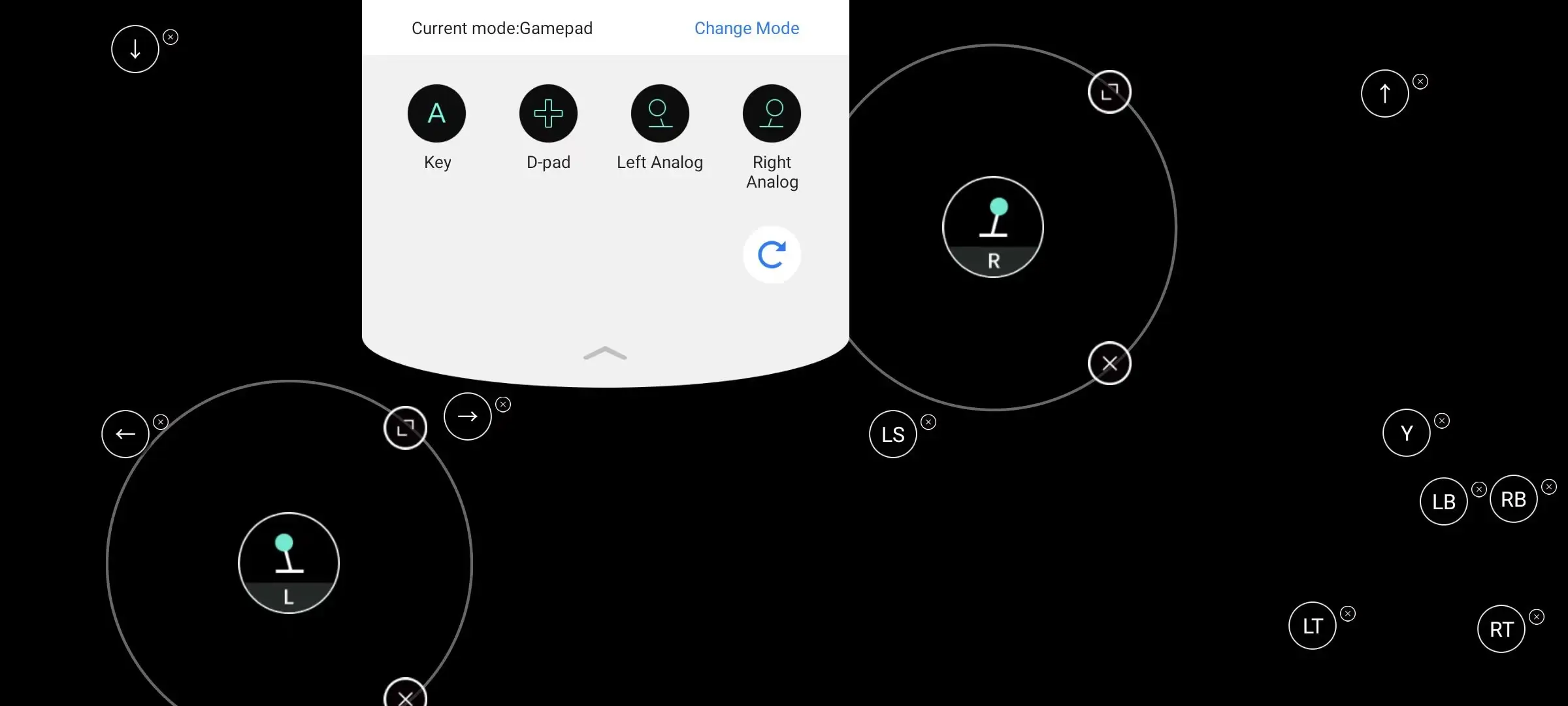
Once you get past the activation nightmare, the actual interface is pretty clever. You open the game through the Panda app. A little panda head icon floats on the side of your screen. You tap it, and a menu of buttons appears.
You drag a "Button" icon over to the "Shoot" button on your screen. You press 'RT' on your controller. Boom. Linked.
The trickiest part is the "Right Joystick" for camera control. You have to place it exactly in the center of the area where you usually swipe to look around. If you put it too far to the edge, your camera will hit a "wall" and stop spinning. You also need to adjust the sensitivity within the Panda app itself, separate from the in-game settings.
Technical Limitations You Should Know
It isn't magic. There are some hard limits to what the Panda Gamepad Pro APK can do.
First, it doesn't support the "Logitech G Cloud" or "PlayStation Portal" as well as you’d hope because those devices have weird proprietary button IDs. It’s primarily built for standard Bluetooth HID controllers.
Second, it doesn't support Mouse and Keyboard. For that, the developers made a separate app called Panda Mouse Pro. Don’t try to force a keyboard to work on the Gamepad version; you’ll just end up frustrated.
Third, MediaTek processors (often found in budget phones) sometimes have issues with the touch injection driver. If you're running a high-end Snapdragon chip, you're usually golden. If you're on a $150 burner phone, expect some lag.
The Price Tag vs. The Free "Mod" APKs
Panda Gamepad Pro is a paid app on the Google Play Store. It’s usually a few bucks. You will see dozens of sites offering a "Panda Gamepad Pro Mod APK" for free.
Be extremely careful.
Most of these modified versions are cracked to bypass the license check, but in the process, they often break the activation script. Or worse, they bundle in malware. Since the app requires high-level ADB permissions to function, giving a "modded" version access to your phone is essentially giving a stranger the keys to your entire digital life. If you’re serious about gaming, just buy the official version. It’s cheaper than a coffee and you get the actual updates that fix compatibility with new Android versions.
Actionable Steps to Get Started
If you’re ready to stop losing because of touch controls, here is exactly what you should do:
- Check Compatibility: Ensure your controller is paired to your phone via Bluetooth and working in the Android OS menus first.
- Download the Official App: Grab it from the Play Store. Don't open it yet.
- Enable Developer Options: Go to Settings > About Phone and tap "Build Number" seven times. Then find "USB Debugging" and toggle it on.
- The Activation Run: Use a PC if possible. It’s the most stable method. Download the activator from the official Panda gaming studio site, run the script, and don't unplug the cable until the app on your phone shows a green "Activated" checkmark.
- Ignore Battery Optimization: This is the most important step. Find Panda Gamepad Pro in your phone's "Battery" settings and set it to "Unrestricted."
- Test on a Guest Account: Open your game of choice through the Panda interface. Map your buttons. Play a few rounds on a guest account to make sure the game's anti-cheat doesn't kick you immediately.
- Fine-tune Deadzones: If your character is drifting, go into the Panda settings and increase the "Deadzone." This ignores slight stick movements that happen with older, worn-out controllers.
Mobile gaming is evolving, but the interface is still stuck in 2010. Using a keymapper like this is the only way to close the gap between mobile and console experiences. It takes a bit of technical "elbow grease" to get it running, but once that first headshot lands because you had a physical trigger, you'll never go back to touch controls.